
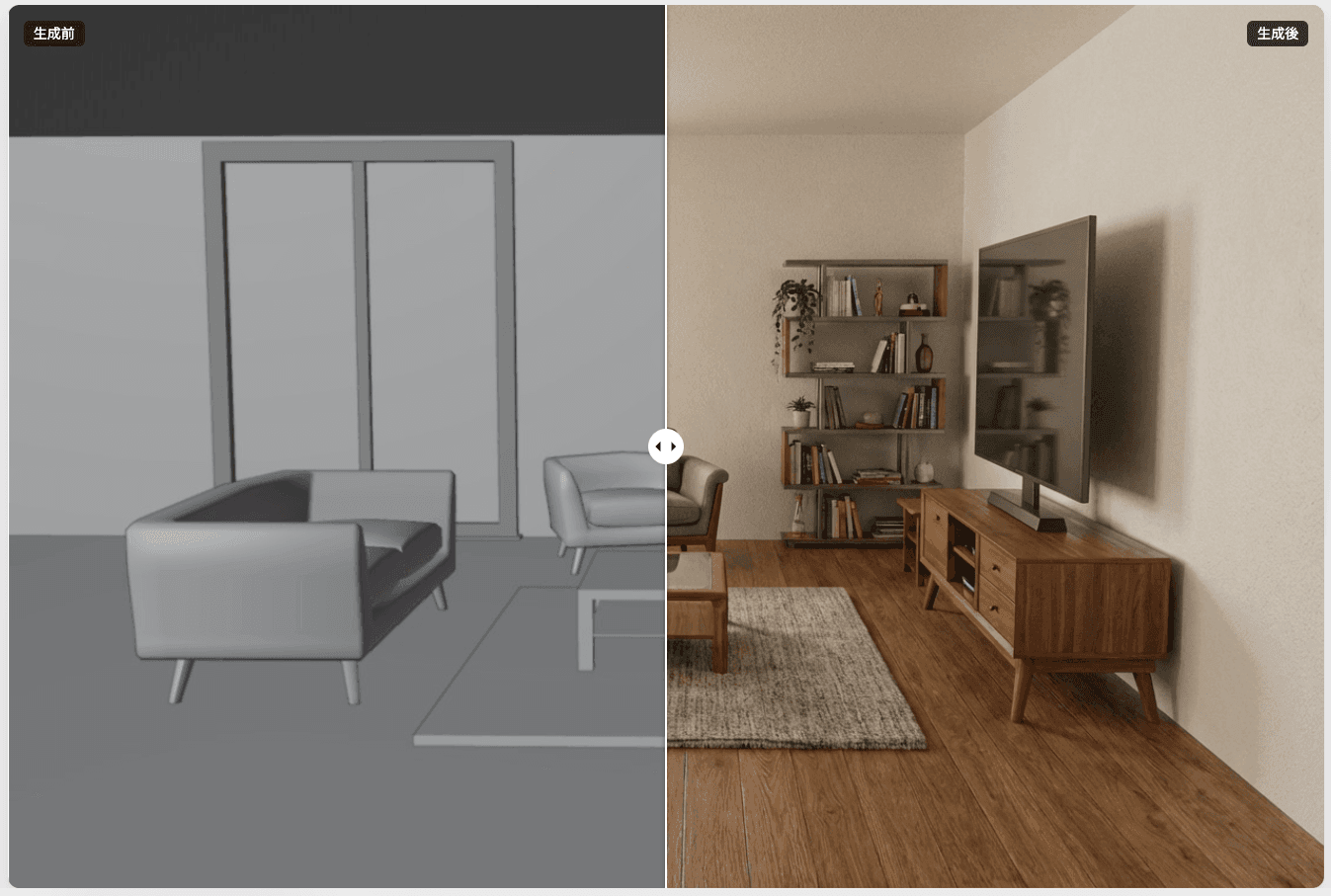
How Rough Is Too Rough? From Raw 3D Model to Pro-Quality Render in Seconds
We're excited to share a major update to one of ArchiX's core features: the Rough CG Render tool.
In a previous post, we introduced the ability to generate high-quality perspective renders from screenshots of 3D models. That feature has been widely used, and based on feedback, we've now made a fundamental improvement to how ArchiX processes and interprets input images at the prompt level.
The result: ArchiX can now produce polished renders from significantly rougher source data than before.
Here's a closer look at what that means in practice.
Do You Still Need to Set Materials?
Until now, getting accurate results from the AI required some preparation on the 3D model side. You'd need to apply textures - wood for the flooring, fabric for the sofa - to give the AI enough context to understand what each surface was supposed to be.
That's a reasonable ask for a detailed project, but in the early stages of design, it's often unnecessary friction. You might just want to check proportions, or quickly show a client a few different atmospheres without getting into material decisions yet.
This update directly addresses that. ArchiX now has a significantly improved ability to read spatial intent from geometry alone - including fully untextured white or gray models - and automatically assign appropriate materials and finishes.
Test 1: What Happens with a Bare-Bones 3D Model?
The input used for this test was about as minimal as it gets.
Before: The uploaded rough CG
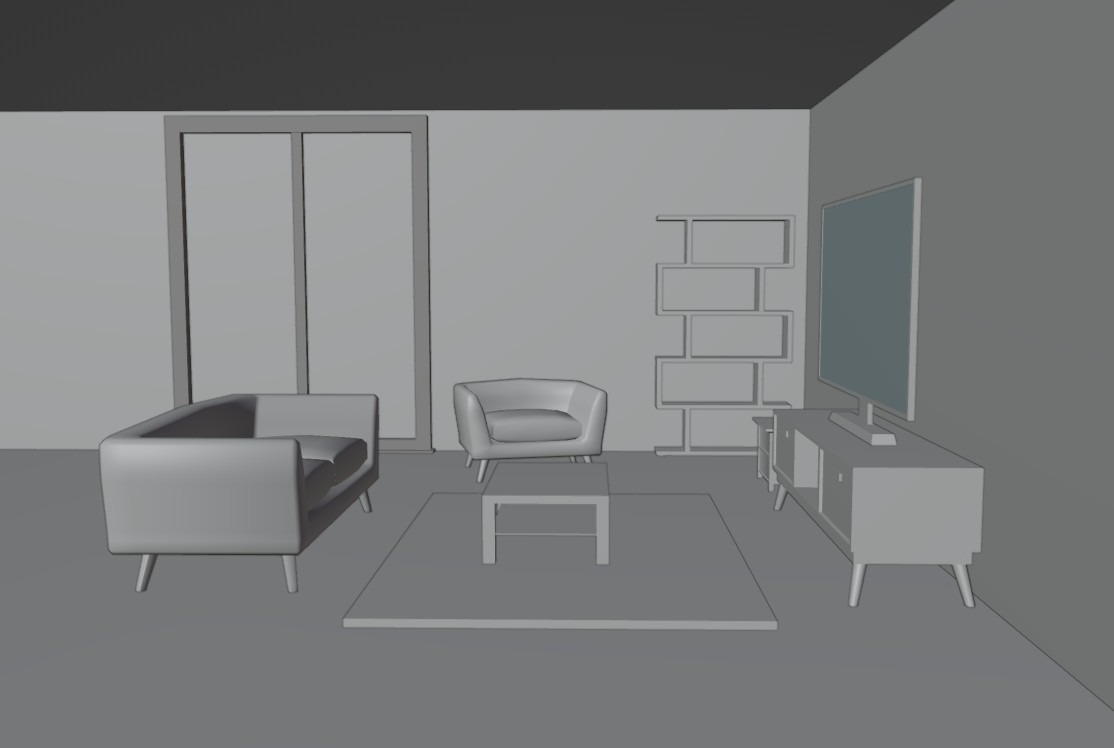
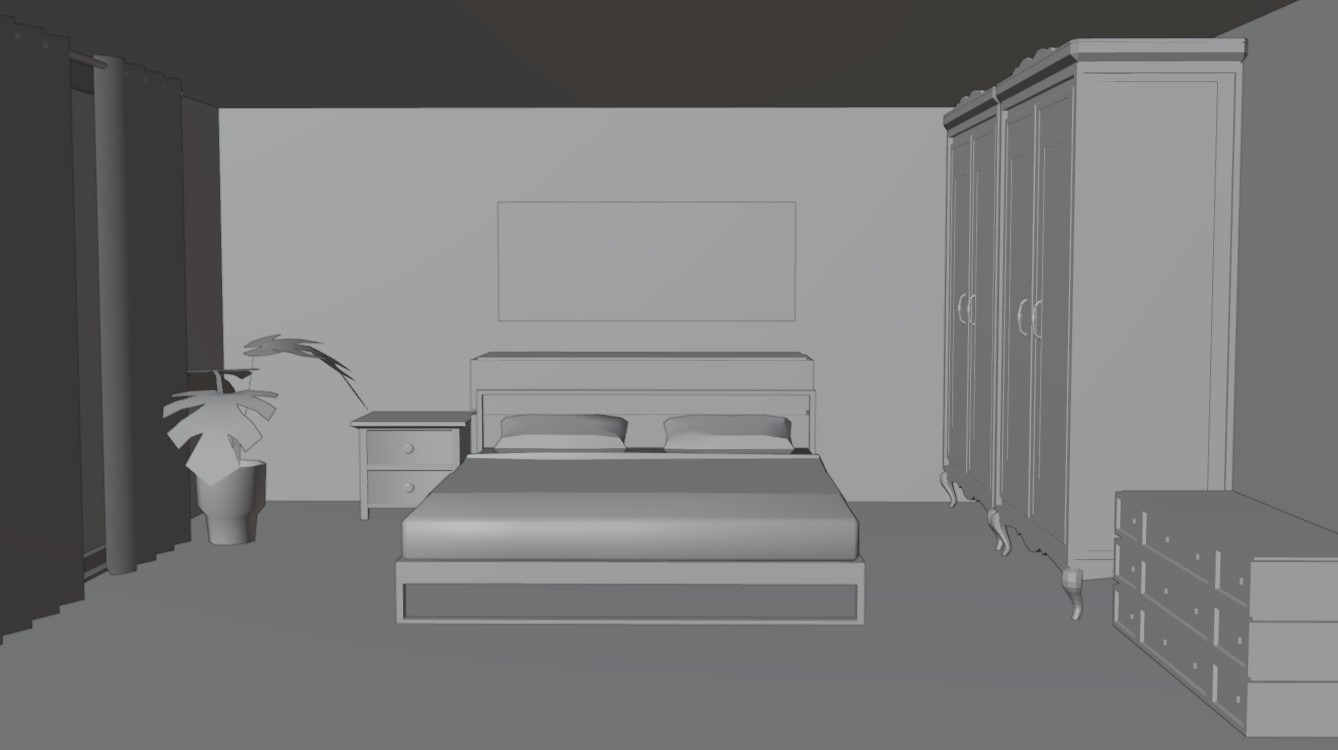
This is geometry only - no materials, no lighting, no detail. Walls and floors are flat gray. Furniture is placeholder-level geometry. In this state, showing it to a client would almost certainly prompt "what am I looking at?" rather than a productive design conversation.
Run it through ArchiX's updated Rough CG Render tool, and here's what comes out:
After: Render generated by ArchiX
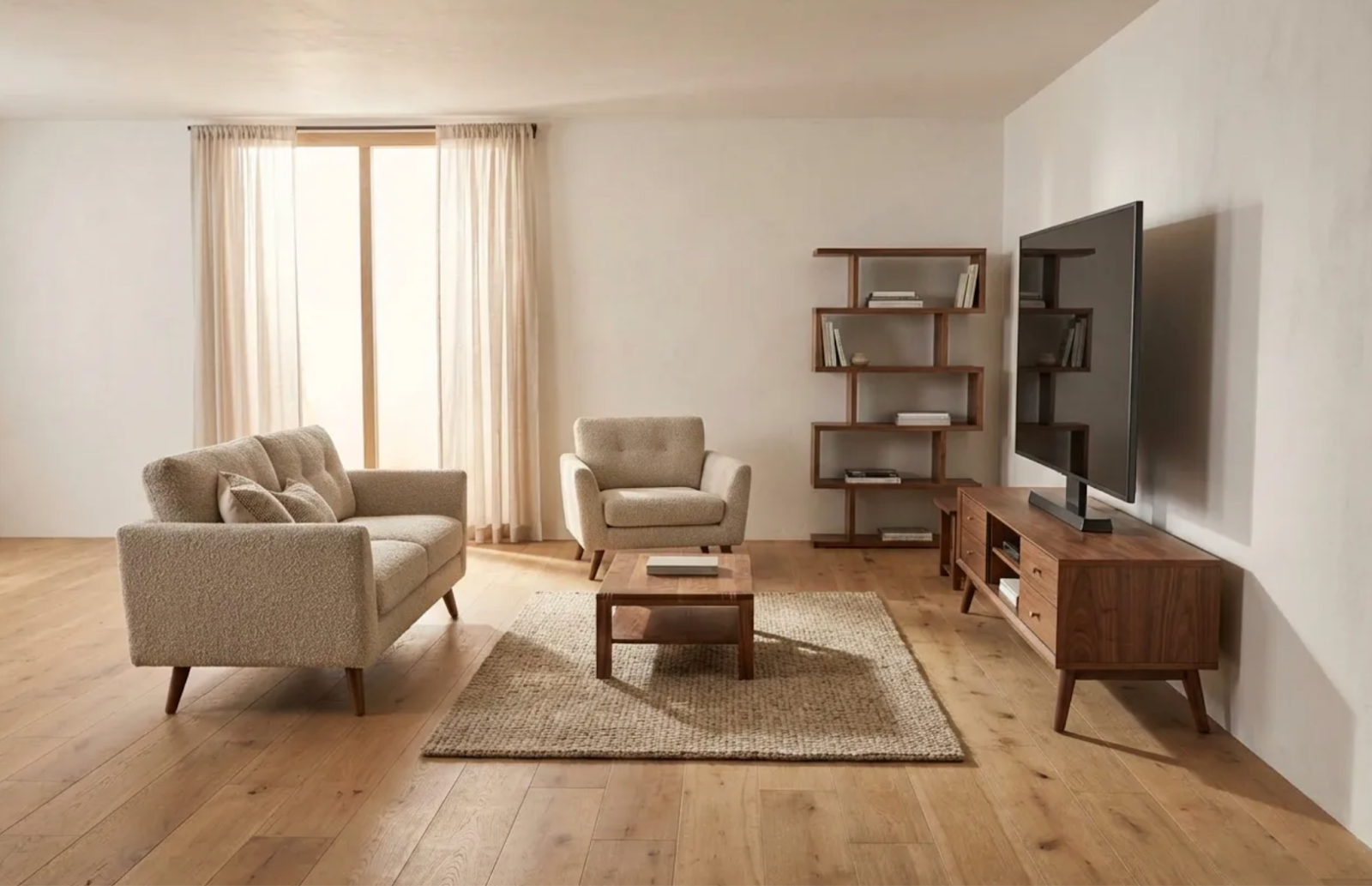
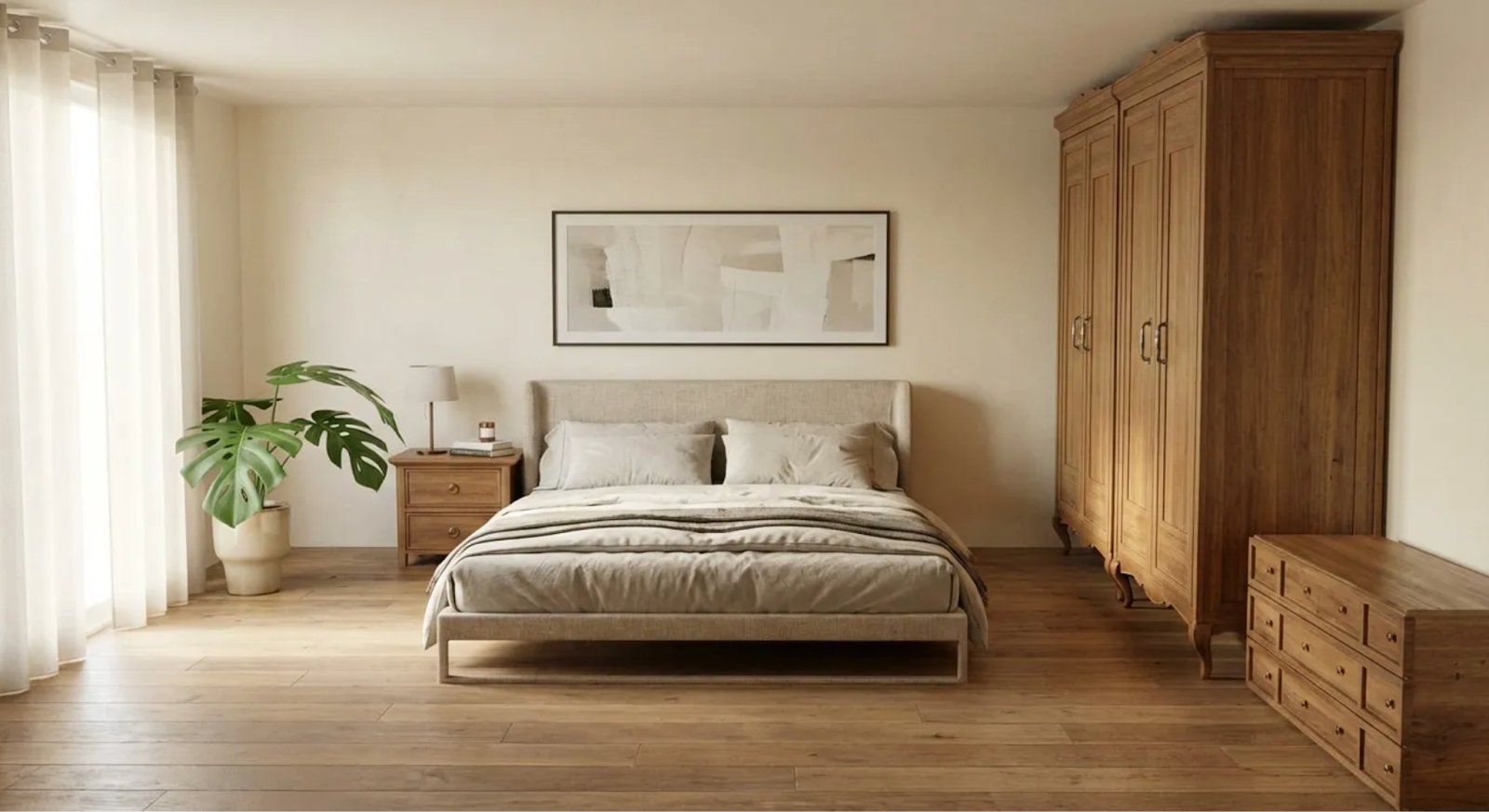
The gray floor becomes warm hardwood. The placeholder sofa has fabric texture. Natural light enters through the windows and gives the room depth. All of this from raw modeling data, in a matter of seconds.
Test 2: What If Materials Are Already Defined?
If your model already has basic colors or textures applied, the updated tool handles that too. Low-polygon models with rough color assignments - the kind you'd produce in SketchUp to communicate a general palette - are now treated as directional input rather than a limitation.
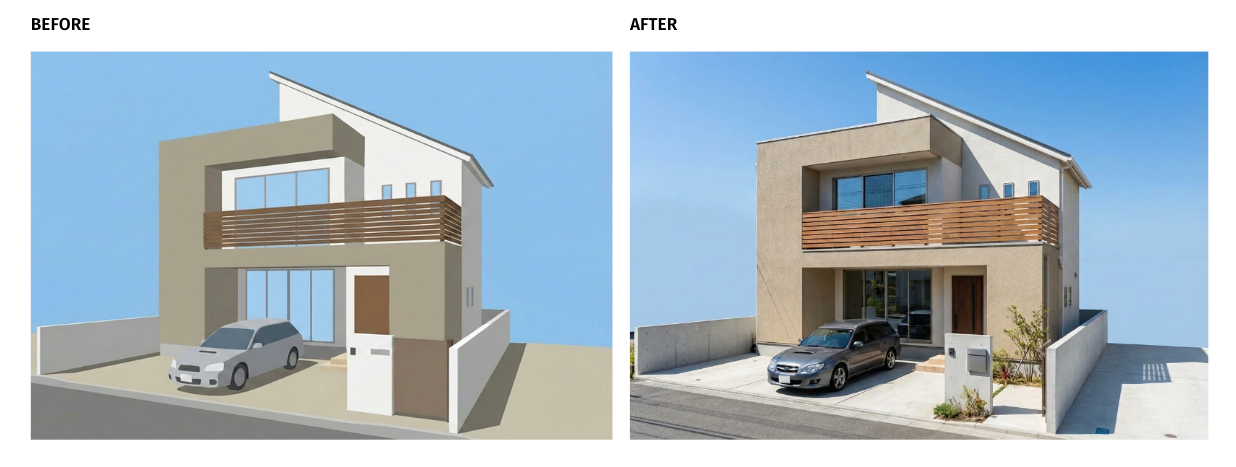
If you've indicated that one area should be brown brick and another white plaster, ArchiX reads those as intent and respects them while elevating the overall visual quality to photorealistic. Use a white model when you want the AI to make material decisions. Use a lightly colored model when you want to steer those decisions yourself.
Built for SketchUp and Revit Users
This update is particularly useful for teams already working in common design tools:
SketchUp users: You don't need to finish a scene before it's useful. A screenshot with furniture from the 3D Warehouse, colors still unassigned, is enough. Upload it to ArchiX and let the AI produce a proposal-ready image.
Revit and ArchiCAD users: No need to configure rendering settings. Capture your working view and send it to ArchiX. The model you built for documentation can now pull double duty as a visualization asset.
One Image Early. Faster Decisions Throughout.
Early in a project, specifications are rarely locked in. "Should the floor be light or dark?" "Are we going modern or natural?" Getting renders to explore those questions used to take hours.
Now it's a matter of uploading the geometry, adjusting the prompt - "modern style" versus "natural wood tones" - and showing multiple options in the same meeting. Because the model doesn't need to be finished, changes aren't intimidating. You can explore directions quickly, get early buy-in, and move into detailed design with confidence.
If you haven't tried ArchiX yet, you can get started free for two weeks here.