
From a single sketch
to a video presentation: one workflow.
ArchiX connects render, edit, stage, video, and manage on a single project: an AI workflow that runs end to end.Six stages, each below.
Bring in your source, set the scene
Upload a new image or pick from your past uploads and generations. Filter by project to jump straight into a live brief. Choose scene type (interior / exterior) and input type to start.
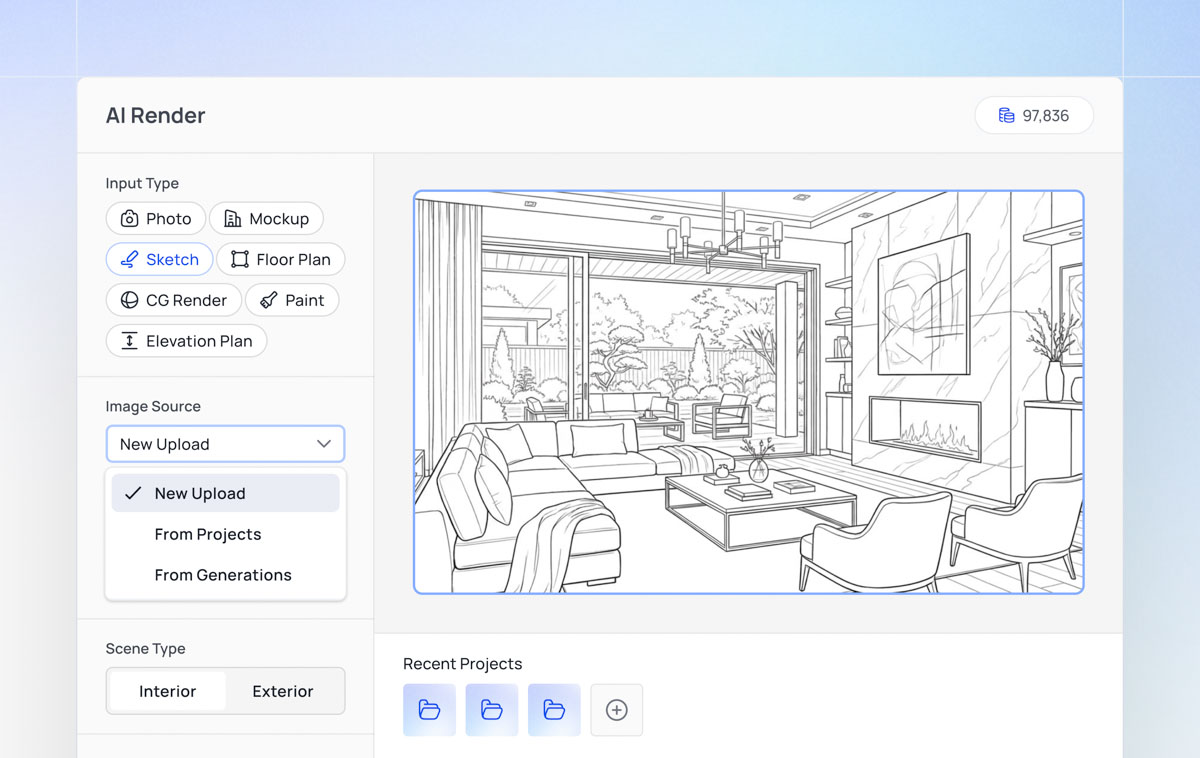
Prompt-less. Just the render you wanted.
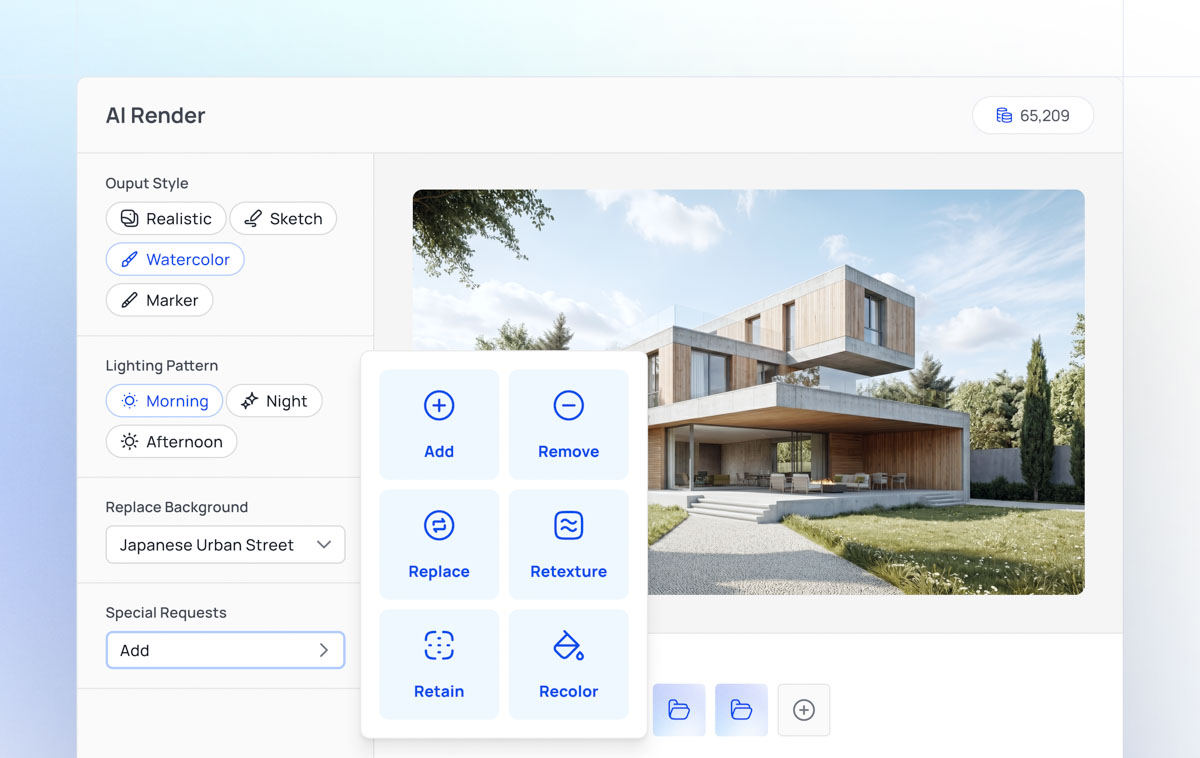
Pick style, lighting, background, and request from a panel. No long English prompts. Four styles (Watercolor / Realistic / Sketch / Marker), three lighting modes, plus Japanese-context background presets, everything the architectural workflow actually needs.
Polish to the final detail, post-render
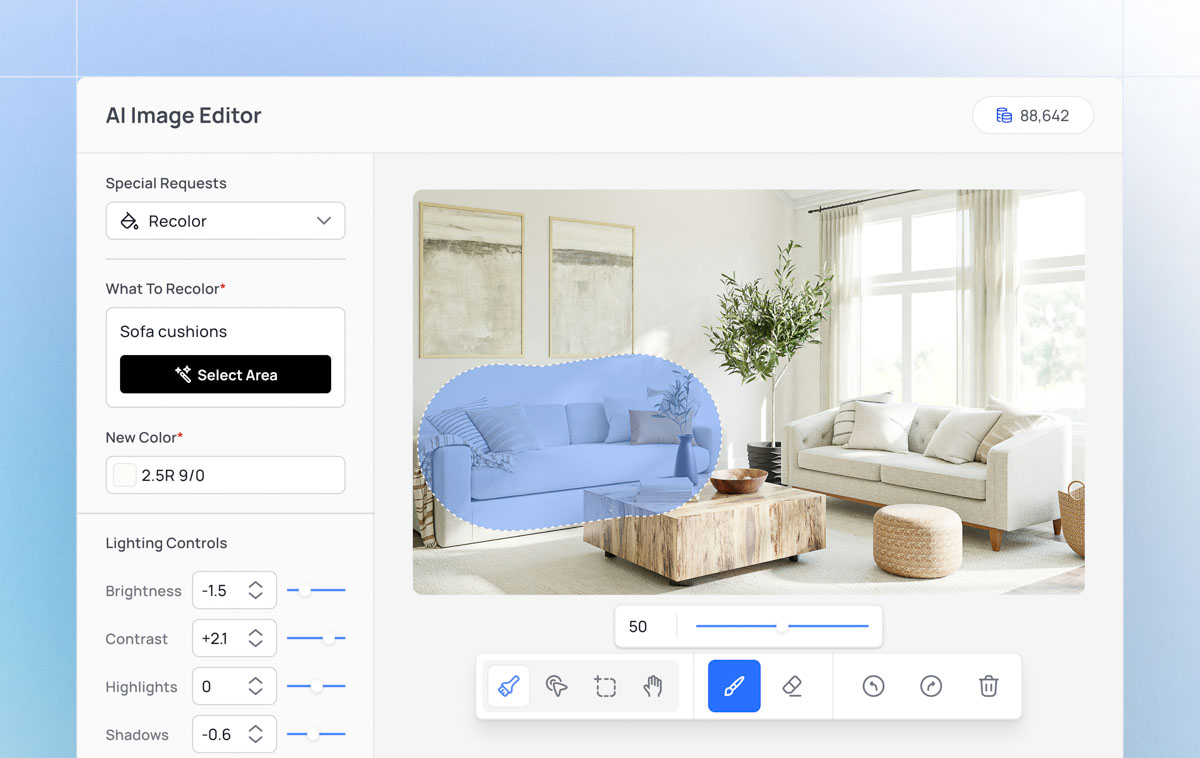
Mask generated images with brush or segment selection. Replace, add, remove, or recolor regions. Tone adjustments (temperature, exposure, contrast, shadows) plus background swaps bring the output up to final-submission polish.
Empty rooms, sold rooms: instant staging
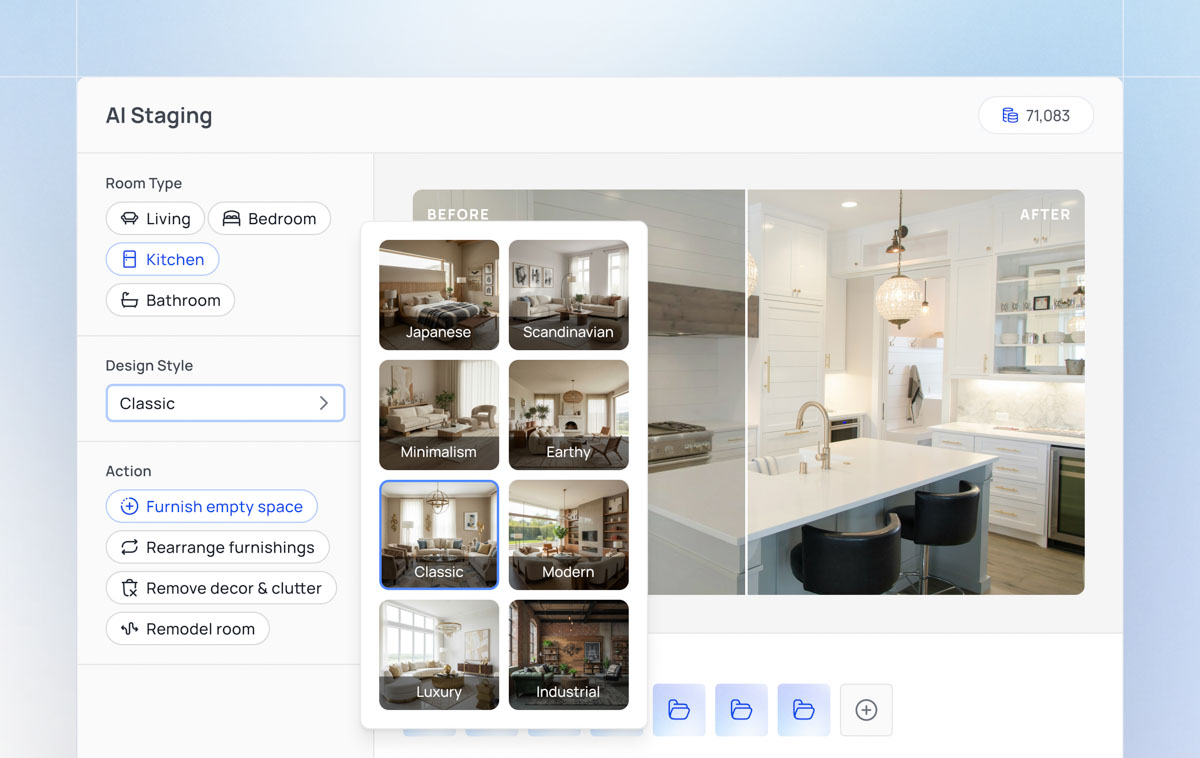
Pick a room type and design style to auto-furnish an empty room, rearrange existing furniture, clear out decor, or fully remodel. Drop straight into real-estate pitches or before/after renovation comparisons.
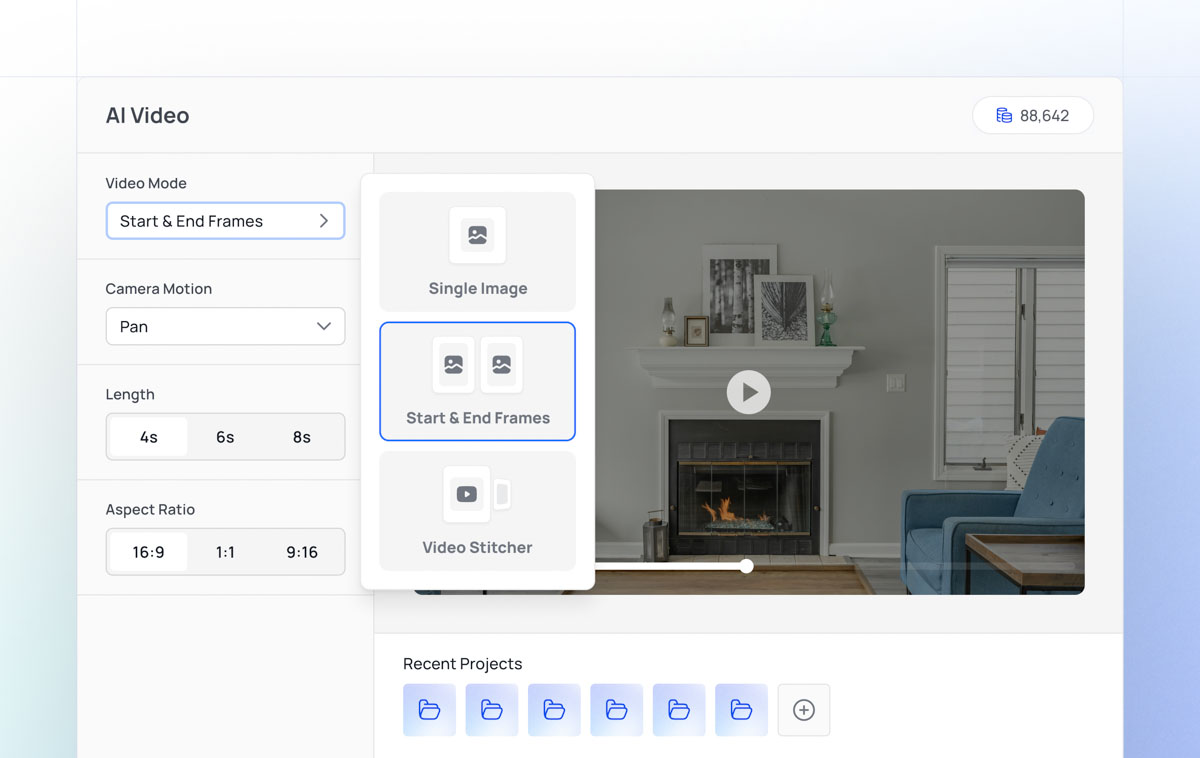
Turn a still into a presentation in motion
From images you rendered, edited, or staged, auto-generate drone or eye-level short videos. 3–8 second clips ready for pitches, social, and show-rooms.
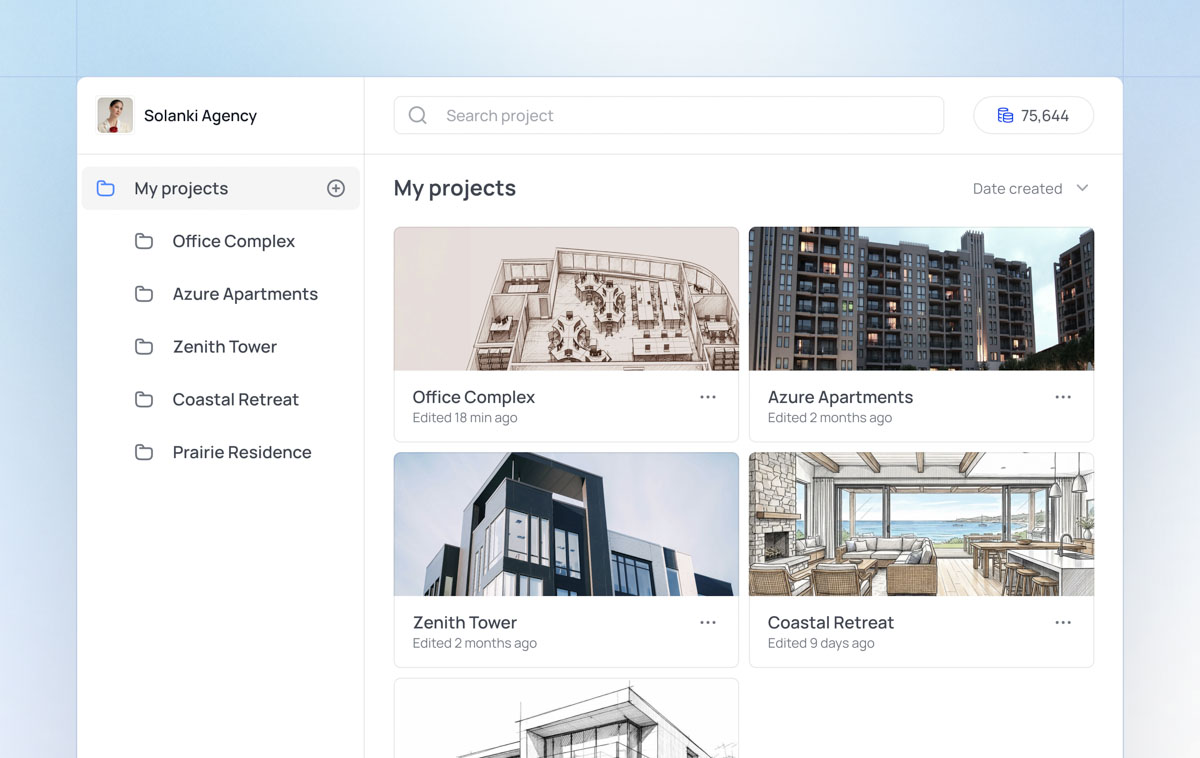
Bundle every output, by project
Render / Editor / Staging / Video / Note Taker / Chat: every module’s output auto-flows to the project. Invite teammates and share assets, meeting notes, and chats per project.
Beyond generation: notes and conversations connect to the project too.
ArchiX isn’t only a generation tool. Client conversations, internal chat, and decision notes all tie back to the project, reusable as context for the next render.
Auto-transcribe your client meetings
Google / Outlook calendar integration, auto-attend rules, Japanese / English / Korean / auto-detect transcription. Notes attach to the project and feed the next render brief.
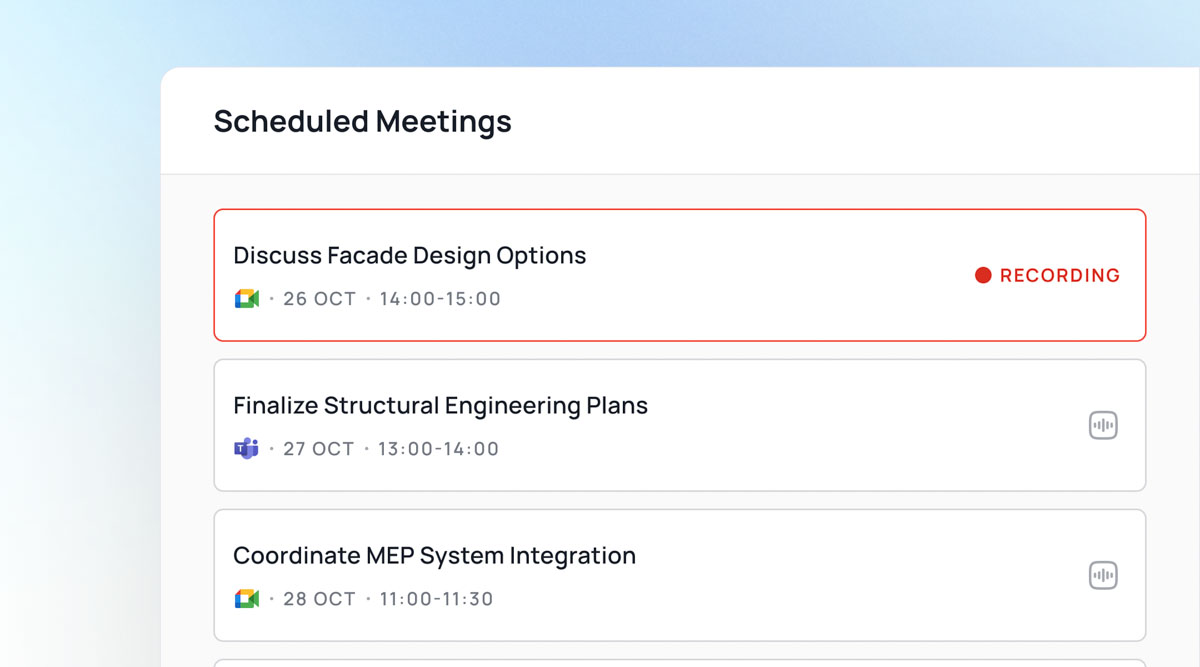
- Google / Outlook integration
- Auto-attend (internal / external / invite)
- JP · EN · KR · auto-detect
- Send to project
An AI that talks in your project’s context
Reference project media and meeting notes as sources. Toggle prompt optimization and web search, covering everything from research to ideation.
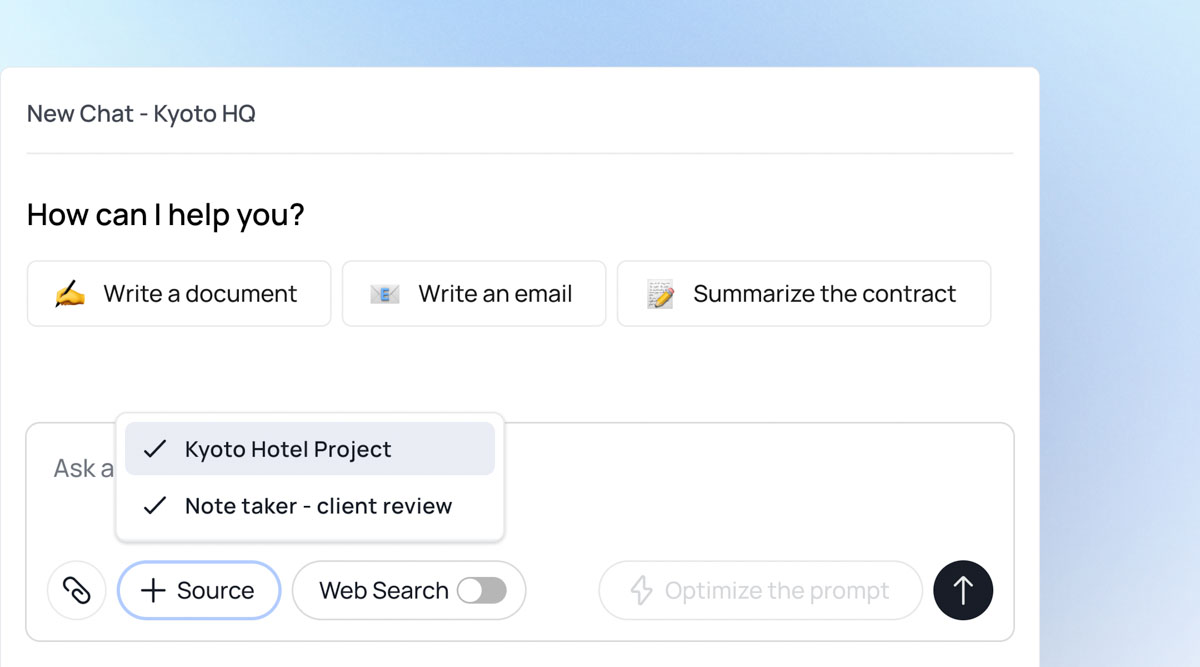
- Use project media as source
- Connect with Note Taker
- Prompt optimization
- Web search toggle
From a single sketch,
every step on ArchiX.
The free plan covers Render / Edit / Staging / Video. No credit card.
Brochure Requests & Inquiries
Questions, deployment discussions, online demos: please reach out about anything.
Sent. Thanks for reaching out.
Couldn't send right now. Please try again, or email us directly at hello@archix.ai.